

Category: Technology

  • LXC unprivileged containers on Ubuntu 14.04 LTS

    LXC Containers
    LXC Containers

    I’ve been toying around with containers using LXC, and I decided to use this technology to do some performance technique for a PHP web application. So I set-up a VM with Ubuntu 14.04 LTS and decided to use containers to test various stacks, e.g. MySQL 5.5 + PHP 5.6 + Nginx 1.4.6 vs MariaDB 10 + PHP 7 RC3 + Nginx 1.9 (and all possible combinations), and HTTP/2, latencies, etc. On top of this experiment I wanted to learn more about Ansible.

    Therefore my needs were the following:

    • One account to rule them all: one user account on the VM with sudo privileges. Used by Ansible to administer the VM and its containers.
    • Run each container as unprivileged ones.
    • Each container is bound to one unique user.

    As of Ansible 1.8, LXC containers are supported, but as second class citizen: this extra module needs some dependency to work (which are not in the default repositories) and it would hide me how to configure the LXC containers, so I discarded this solution.

    Unprivileged containers using the LXC command line UI

    Standard containers usually run as root and the root user within that container maps to the root user outside of the container. This is not exactly how I think of a container.

    Real Container
    Real Container

    In my view, a container is meant to hold something which I don’t want to leak out of the container, a chroot on steroids! So although I was really looking forward for containers on Linux, the first implementation were not matching my expectations or use cases.

    Being able to run unprivileged containers is one of the great thing which finally decided me to check those containers on Linux, they finally cut the mapping between the privileged users on the host and those in the container.

    Unprivileged containers are not as easy to set-up as normal fully privileged containers and you have to accept that you need to download an image from some website you need to trust. Not ideal, but resources about how to build an image for an unprivileged container are really scarce online, and I decided to first try it with the images, and then once I master LXC, to try building my own images.

    Setting up LXC unprivileged containers require a few more packages, especially for the user and group IDs mapping, some preliminary account setup and giving LXC proper access to where you store the LXC containers data in your home folder. I did all of this, including setting up ACLs for the access. But when I hit lxc-start (...) it all failed!!!

    Container_Failuer
    Container in Distress

    What I did after all preliminary configurations was:

    $ sudo -H -u dbusr lxc-create -t download -n mysql55 -- --dist ubuntu --release trusty --arch amd64
    $ sudo -H -u dbusr lxc-start -n mysql55 -d
    lxc-start: lxc_start.c: main: 344 The container failed to start.
    lxc-start: lxc_start.c: main: 346 To get more details, run the container in foreground mode.
    lxc-start: lxc_start.c: main: 348 Additional information can be obtained by setting the --logfile and --logpriority options

    And the lxc-start command failed miserably.

    Why? A bit of background first, I will try to describe at a high level how containers “contain” on Linux. LXC should not really be compared to Solaris Zones or FreeBSD Jails. LXC uses Linux Control Groups (cgroups) to contain (allow/restricting/limiting) access by some process to some resources (e.g. CPU, memory, etc.). When one creates a “local” session on Ubuntu 14.04 LTS (and this is still valid on the up-coming Ubuntu 15.10 as of writing), such as login through the console or via SSH, Ubuntu allocates for the user different control groups controllers which can be viewed by doing:

    $ cat /proc/self/cgroup
    12:name=systemd:/user/1000.user/4.session
    11:perf_event:/user/1000.user/4.session
    10:net_prio:/user/1000.user/4.session
    9:net_cls:/user/1000.user/4.session
    8:memory:/user/1000.user/4.session
    7:hugetlb:/user/1000.user/4.session
    6:freezer:/user/masteen/0
    5:devices:/user/1000.user/4.session
    4:cpuset:/user/1000.user/4.session
    3:cpuacct:/user/1000.user/4.session
    2:cpu:/user/1000.user/4.session
    1:blkio:/user/1000.user/4.session

    Each line is a type of control group controller assigned to the user. For example the line about memory concerns the Memory Resource Controller which can be used for things such as limiting the amount of memory a group of process can use.

    So when I run my script via Ansible, Ansible first establish a SSH session using my “rule-them-all” user, an SSH session is considered “local” and PAM is triggering systemd-logind to create automatically cgroups for my user shell process. Yes, even-though Ubuntu 14.04 LTS is still using upstart for init system, it has already a few dependencies on systemd! Now my “rule-them-all” user, when he is using sudo to execute commands as another user (be it root or one of my container users), the executed command is not considered as a “local” session for the sudo-ed user. So no cgroups are created for the new process, and it actually inherit the cgroups of the callee. This is easily visible by doing, you can see that the username and UID did not change despite the command being run as another user:

    $ sudo -u userdb cat /proc/self/cgroup
    12:name=systemd:/user/1000.user/4.session
    11:perf_event:/user/1000.user/4.session
    10:net_prio:/user/1000.user/4.session
    9:net_cls:/user/1000.user/4.session
    8:memory:/user/1000.user/4.session
    7:hugetlb:/user/1000.user/4.session
    6:freezer:/user/masteen/0
    5:devices:/user/1000.user/4.session
    4:cpuset:/user/1000.user/4.session
    3:cpuacct:/user/1000.user/4.session
    2:cpu:/user/1000.user/4.session
    1:blkio:/user/1000.user/4.session

    This usually does not really matter, unless you are LXC and you use cgroups heavily!! So what happened is that lxc-start wanted to write to the various cgroups to create the container. But lxc-start was called by the user dbuser (via the sudo command), however the cgroups it inherited were from my “rule-them-all” user and obviously (and thankfully) dbuser does not have the right to change the cgroups of my “rule-them-all” user. So lxc-start failed due to some permission denied:

    lxc_container: cgmanager.c: lxc_cgmanager_create: 299 call to cgmanager_create_sync failed: invalid request
    lxc_container: cgmanager.c: lxc_cgmanager_create: 301 Failed to create hugetlb:mysql55
    lxc_container: cgmanager.c: cgm_create: 646 Error creating cgroup hugetlb:mysql55
    lxc_container: start.c: lxc_spawn: 861 failed creating cgroups
    lxc_container: start.c: __lxc_start: 1080 failed to spawn 'mysql55'
    lxc_container: lxc_start.c: main: 342 The container failed to start.

    Getting Ubuntu 14.04 LTS ready to run our Unprivileged Containers

    I did not manage to solve the problem on Ubuntu 14.04 LTS in a first attempt. But after some extra steps (which I will details below), I made it work on the up-coming Ubuntu 15.10 (still alpha) release! So revisiting my Ubuntu 14.04 LTS setup, I identified the required packages needing an upgrade: kernel, lxc and cgmanager (and a few dependencies). For the Kernel, I’ve used the latest Ubuntu LTS Enablement Stack and upgraded to kernel 3.19. For the other packages, despite my aversion for 3rd party repositories, I decided to trust the Ubuntu LXC team (they are the ones who do the work to get LXC/LXD in Ubuntu in the first place) and their LXC PPA. So the commands were:

    $ sudo apt-get install --install-recommends linux-generic-lts-vivid
    $ sudo apt-add-repository ppa:ubuntu-lxc/lxc-stable
    $ sudo apt update
    $ sudo apt full-upgrade
    $ sudo apt-get install --no-install-recommends lxc lxc-templates uidmap libpam-cgm

    The lxc-templates package are necessary for me as I’m using the “download” template. The uidmap is mandatory for unprivileged containers. And libpam-cgm is necessary to resolve my problem, it is a PAM module for the cgmanager which is the Control Group Manager daemon (installed as a dependency to LXC on Ubuntu).

    Now armed with this updated kernel and container stack it is time to present you the extra setup steps I was talking about. We need first to update either (or both depending which method you use) the PAM configuration for sudo or su. I will show the extra line for the former, they should apply for the later if you wish to use it. You need to edit as root the file /etc/pam.d/sudo and add the following lines after the line ‘@include common-session-noninteractive‘:

    session required pam_loginuid.so
    session required pam_systemd.so class=user

    The above 2 lines will register the new session created by sudo with the systemd login manager (systemd-logind). That’s the guy we wanted notified so that the creation of the cgroups for our user can now work. I’m still scouring the internet for the exact explanation of how this work. If I find it, I will probably write another post with the information.

    If I would simply use su -l userdb or sudo -u userdb -H -s, I would just have to execute the following:

    $ sudo cgm create all $USER
    $ sudo cgm chown all $USER $(id -u) $(id -g)
    $ cgm movepid all $USER $$

    This will create all cgroups under the user $USER which is userdb. It will then set the owner of these new cgroups to the UID and GID of the userdb. And the last command move the SHELL process ($$) within these new cgroups. Then, the rest is trivial:

    $ lxc-start -n mysql55 -d

    And it is working. And if you want to run those commands using sudo, this is how you do it:

    $ sudo -H -i -u userdb bash -c 'sudo cgm create all $USER; sudo cgm chown all $USER $(id -u) $(id -g)'
    $ sudo -H -i -u userdb bash -c 'cgm movepid all $USER $$; lxc-start -n mysql55 -d'

    If you close later the SSH session and you reconnect to it, you have to run the 2 commands again, even though it might display some warning that the paths or what-not are already existing. I still have those pesky warning and extra commands which I’m not sure why I still have.

    Conclusion

    While trying to run unprivileged containers on Ubuntu 14.04 LTS I’ve met several problems which I could only solved by using the latest LXC and CGManager packages and some special PAM configuration for which I’m not 100% sure of the impact. So unprivileged LXC containers on Ubuntu 14.04 LTS is still quite rough.

    But during my journey with LXC, I’ve found an even easier way to create unprivileged LXC containers, without touching PAM, but still requiring the latest LXC and CGManager packages. This solution is based on LXD, the Linux Containers Daemon. There is a really good getting started guide by Stéphane Graber, the man behind LXD. I’m exploring this avenue at the moment and will report soon on this very blog.

    All of this make me really look forward to the next Ubuntu LTS due to next Spring, the newer LXC and the under-heavy-development LXD will be part of Ubuntu 16.04 LTS and this could give a really great experience out-of-the-box with Linux Containerisation powers.

    Picture credits: LXC Containers is based on a Public Domain photo of an unknown author. Real Container by Petr Brož, licensed under CC BY-SA 3.0 via Wikimedia Commons. Container in distress is licensed under a CC-BY 2.0 license by the New Zealand Defence Force.
  • Linux and AVM Fritz!Wlan USB Stick N v2

    USB-Wireless-DongleI bought a USB Wireless dongle from AVM called Fritz!Wlan USB Stick N v2. The wireless chipset of this dongle is usually Ralink RT5572 (this device has had a few revisions, hence the v2 should be this Ralink chipset) which is supported under Linux by the rt2800usb module.

    This dongle is particular, it is first seen as a CD drive. This is meant for Windows users so that the system will automatically install the correct driver, eject the CD and then transform itself into a Wireless dongle. On other platform, it also shows up as a CD drive, if you eject it (automatically or manually) it becomes a Wireless dongle.

    Once you plug it, you can view it on Linux directly running: lsusb -d 057c:. However depending on your version of Linux, it might shows as a CD, broken, or potentially in the future as a Wireless device.

    On Debian Wheezy, it was seen as a CD drive. A simple manual eject command and it is working. Slightly annoying, but fine.

    On Debian Jessie (which uses systemd) and on Fedora 22 (also using systemd), the device is not mounting as a CD not as a Wireless dongle. So you can’t use it.

    I don’t know why, but there is a package (already installed on both distribution by default) named usb-modeswitch which tries to be clever and detects USB devices like the one from AVM and do automatically for you the necessary kirks to make it work as intended. It seems that an Wheezy, it was not triggered. But on Jessie and Fedora 22, it was triggered but wrongly configured.

    I have the solution which work flawlessly on both distributions and will allow you to just plug your USB dongle and see it as a wireless device (as expected! Thanks AVM x-( )

    You either need to create or modify the file /etc/usb_modeswitch.d/057c:62ff so that it contains exactly the following text:

    # AVM Fritz!Wlan USB Stick N v2
    TargetVendor=0x057c
    TargetProductList="8501,8503"
    StandardEject=1
    NoDriverLoading=1
    MessageContent="5553424312345678000000000000061b000000ff0000000000000000000000"

    On Debian Jessie, this file did not exist. Adding solve the problem!

    On Fedora 22, this file existed but the last line was missing. What this line is meaning is beyond my understanding. But it is taken from the creator of the usb-modeswitch tool. He has a reference file with many USB devices and solutions. The AVM USB wireless dongle is in there, and that’s where the line come from.

    Side note: this device is pretty cool if you need to do advanced wireless stuff. For example, it is possible to build a WiFi rogue AP detector with this device and some tools.

    Picture credits: Picture was created by me using elements from the KDE project. The original materials were licensed under GNU LGPLv3, and the picture is also provided under this license terms and conditions.
  • An Unpredictable Raspberry Pi

    Critical Miss! by Scott Ogle, CC BY-SA 2.0
    Random Number Generator – Photo by Scott Ogle, CC BY-SA 2.0

    Our computers are not really good at providing random numbers because they are quite deterministic (unless you count these pesky random bugs that make working on a computer so “enjoyable”). So we created different ways to generate pseudo-random numbers of various qualities depending on the use. For cryptography, it is paramount to have excellent random numbers, or an attacker could predict our next move!

    Getting unpredictable is a difficult task, Linux tries to provide it by collecting environmental noise (e.g. disk seek time, mouse movement, etc.) in a first entropy pool which feeds a first Cryptographically Secure Pseudo-Random Number Generator (CSPRNG) which then output “sanitised” random numbers to different pools, one for each of the kernel output random device: /dev/random and /dev/urandom.

    Raspberry Pi Logo (a Raspberry)

    Our goal is to help our Raspberry Pi to have more entropy, so we will provide it with a new entropy collector based on its on-board hardware random number generator (HW RNG).

    I have already presented quickly why you need entropy (and good one), and also a quick way of having more source for the Linux kernel entropy pool for the Raspberry Pi using Raspbian “Wheezy” or for any computer having a TPM chip on board.

    This article is an update for all of you who upgraded their Raspbian to Jessie (Debian 8). The new system uses SystemD for the init process rather than Upstart for previous release.

    The Raspberry Pi has an integrated hardware random number generator (HW RNG) which Linux can use to feed its entropy pool. The implication of using such HW RNG is debatable and I will discuss it in a coming article. But here is how to activate it.

    It is still possible to load the kernel module using $ sudo modprobe bcm2708-rng. But I know recommend using the Raspberry Pi boot configuration, as it is more future proof: if there is a newer module for the BCM2709 in the Raspberry Pi 2 (or any newer model), using Raspberry Pi Device Tree (DT) overlays should always work. DT are a mean to set-up your Raspberry Pi for certain tasks by selecting automatically the right modules (or drivers) to load. It is possible to activate the HW RNG using this methods.
    Actually, we do not need to load any DT overlays, but only to set the random parameter to ‘on‘. You can achieve this by editing the file /boot/config.txt, find the line starting with ‘dtparam=(...)‘ or add a new one starting with it. The value of dtparam is a comma separated list of parameters and value (e.g random=on,audio=on), see part 3 of the Raspberry Pi documentation for further info. So at least, you should have:

    dtparam=random=on

    With this method, you have to reboot so that the bootloader can pick-up automatically the right module for you.

    Now install the rng-tools (the service should be automatically activated and started, default configuration is fine, but you can tweak/amend it in /etc/default/rng-tools), and set it to be enable at next boot:

    $ sudo apt-get install rng-tools
    $ sudo systemctl enable rng-tools

    After awhile you can check the level of entropy in your pool and some stats on the rng-tools service:

    $ echo $(cat /proc/sys/kernel/random/entropy_avail)/$(cat /proc/sys/kernel/random/poolsize)                                 
    1925/4096
    $ sudo pkill -USR1 rngd; sudo systemctl -n 15 status rng-tools
    rngd[7231]: stats: bits received from HRNG source: 100064
    rngd[7231]: stats: bits sent to kernel pool: 40512
    rngd[7231]: stats: entropy added to kernel pool: 40512
    rngd[7231]: stats: FIPS 140-2 successes: 5
    rngd[7231]: stats: FIPS 140-2 failures: 0
    rngd[7231]: stats: FIPS 140-2(2001-10-10) Monobit: 0
    rngd[7231]: stats: FIPS 140-2(2001-10-10) Poker: 0
    rngd[7231]: stats: FIPS 140-2(2001-10-10) Runs: 0
    rngd[7231]: stats: FIPS 140-2(2001-10-10) Long run: 0
    rngd[7231]: stats: FIPS 140-2(2001-10-10) Continuous run: 0
    rngd[7231]: stats: HRNG source speed: (min=824.382; avg=1022.108; max=1126.435)Kibits/s
    rngd[7231]: stats: FIPS tests speed: (min=6.459; avg=8.161; max=9.872)Mibits/s
    rngd[7231]: stats: Lowest ready-buffers level: 2
    rngd[7231]: stats: Entropy starvations: 0
    rngd[7231]: stats: Time spent starving for entropy: (min=0; avg=0.000; max=0)us

    Source:

    Raspberry Pi is a trademark of the Raspberry Pi Foundation.
  • 24 – Happy Birthday Linux

    I was too young to have witness this and I had never heard of the internet, e-mails or usenet at that time. But it’s amasing to look once back and see how much technology and connectivity is so much more accessible, and that this simple hobby which was Linux at that time is now everywhere, even in space!

    Hello everybody out there using minix –
    I’m doing a (free) operating system (just a hobby, won’t be big and professional like gnu) for 386(486) AT clones. This has been brewing since april, and is starting to get ready. I’d like any feedback on things people like/dislike in minix, as my OS resembles it somewhat (same physical layout of the file-system (due to practical reasons) among other things).
    (…)
    PS. Yes – it’s free of any minix code, and it has a multi-threaded fs. It is NOT portable (uses 386 task switching etc), and it probably never will support anything other than AT-harddisks, as that’s all I have :-(.
    —Linus Torvalds

  • Installing Raspbian Headless (no screen, full network)

    Changelog:

    • 2015-08: initial release
    • 2015-08: add upgrade to Jessie instructions
    • 2018-03: update instructions for Raspbian Stretch.

    I’m going to explain how to install Raspbian (latest is based on Debian Stretch, dated 2018-03) on a Raspberry Pi which is only connected to the network using a Ethernet cable (of course your Raspberry Pi should be connected to a power source).

    Raspberry Pi 2 Model B+ v1.1This guide should work for all Raspberry Pi supported version with an Ethernet interface (B, B+, 2, 3 and 3-B+). It could potentially work without an Ethernet interface if you have a WiFi USB dongle or a Raspberry Pi with an integrated WiFi which is supported out-of-the box by the RPi. I’ve tested the following on a Raspberry Pi 2 and a Raspberry Pi 3 B+. This guide assumes that you are doing all steps from a Unix machine (I’ve done them from Fedora Linux but it should work on any Linux, BSD or OS X with potential adaptation). It is possible to do it on Windows I suppose, but I don’t have Windows and can’t explain.

    The steps are:

    • Flash the Raspbian image to a SD card;
    • Sync everything and mount the second partition created;
    • Modify files on the SD card to allow SSH (and optionally configure WiFi);
    • Put the SD card in your RPi and plug the power;
    • Wait a couple of minute for thing to settle;
    • Either check your DHCP server (e.g. your router) for the RPi IP address, or scan your network);
    • Connect to your RPi using SSH and finish the setup;
    • (option) Upgrade to Debian Jessie (you will have to view the full article)!

    Flash the Raspbian image to a SD card

    Raspbian LogoThere are already numerous guides online on how to do that. So I will be brief, but refer to those guides for your exact configuration. I assume a new SD card which has already a Windows FAT partition with a size bigger than 4GB (I recommend 16GB). When I plugged that SD card on my laptop it was recognised as /dev/mmcblk0p1 and automatically mounted. First we need to unmount this partition and then to remember the device name (without the partition suffix, so /dev/mmcblk0 in my case). Note that if you are on BSD or OS X those steps are slightly different, check online. Using the device name we can flash the Raspbian image (after downloading the zip file, check that the SHA-256 checksum match, you can either pick-up the normal or the Lite version of Raspbian, but if your goal is a headless server, then the Lite is more suitable).

    $ sudo umount /dev/mmcblk0p1
    $ unzip -p 2018-03-13-raspbian-stretch-lite.zip | sudo dd bs=4M of=/dev/mmcblk0 oflag=dsync status=progress
    $ sync

    After doing the above you should have now 2 new partitions on your SD card. The first partition (suffix p1) is the boot one and is formatted as FAT (was <60MB for me). The second one (suffixed p2) is the root partition and is formatted as ext4 (roughly 3GB). That’s the partition /dev/mmcblk0p2 which is interested for the next step.

    Allow SSH access

    OpenSSH LogoFor pre-systemd Raspbian releases (up to Wheezy, or Debian 7), you need to mount the second partition now, So create first a mount point and then mount the partition to it.

    $ sudo mkdir /mnt/rpi
    $ sudo mount /dev/mmcblk0p2 /mnt/rpi
    $ cd /mnt/rpi/etc
    $ sudo mv rc2.d/K01ssh rc2.d/S01ssh
    $ sudo mv rc3.d/K01ssh rc3.d/S01ssh
    $ sudo mv rc4.d/K01ssh rc4.d/S01ssh
    $ sudo mv rc5.d/K01ssh rc5.d/S01ssh

    For systemd-based Raspbian (from Jessie or Debian 8), you simply need to have the file ssh (or ssh.txt) created in the “boot” partition which is the 1st partition.

    $ sudo mkdir /mnt/rpi
    $ sudo mount /dev/mmcblk0p1 /mnt/rpi
    $ sudo touch /mnt/rpi/ssh

    That’s it!

    Optional WiFi configuration

    Network Wireless by OxygenOptional: if you do not have an Ethernet interface and need to use WiFi, you need to add the WiFi configuration (your SSID – or WiFi network name – and your WiFi password). Assuming you have something like WPA2-PSK, you simply need to edit the file /mnt/rpi/etc/wpa_supplicant/wpa_supplicant.conf and add the following at the end of the file:

    network={
        ssid="Your_WiFi_SSID"
        psk="Your_WiFi_password"
    }

    The network configuration on Raspbian is set to use DHCP, so after booting the system will use whatever network interface it has available and make DHCP requests in order to get an IP address.

    You will also have to specify your country code (in ISO/IEC alpha2 code, DE for Germany, US for USA, JP for Japan, etc.) by either modifying the existing line or by adding it. Here is an example for Iceland:

    country=IS

    The country code is mandatory (at least on recent Raspbian) in order to have WiFi activated. So you will need to set it up correctly if you want a headless installation using WiFi and no Ethernet.

    Note: please don’t use both the Ethernet and WiFi interfaces if you they are both on the same network. Such a configuration is possible, but it won’t work out-of-the-box. So set up first one interface, make it work and then add the other one (look for online resources about how to configure Linux for 2 NIC on the same subnets).

    Start Raspbian and connect to it

    Now sync all changes to the SD card:

    $ cd ~ ; sudo umount /mnt/rpi

    Before removing the SD card from your computer, be sure that you properly unmounted it.

    Now remove the SD card from the computer, insert it in the Raspberry Pi, plug the Ethernet cable (or the WiFi USB dongle) and then the USB power plug. The LEDs of your RPi should light up (PWR – red one – means that your power supply is good enough; ACT – green one – should not be steady green, it means your SD card is not readable or was wrongly flashed, it should blink). After the RPi has completed boot up, the ACT LED should be off (mostly), meaning that there are no more I/O activities going on. That’s when you can be sure that the RPi has sent its DHCP probes and should have an IP address assigned.

    If you have a proper router which register a DNS entry for each DHCP clients, you should be able to directly login to your Raspberry Pi by doing:

    $ ssh pi@raspberrypi

    If you router does not support such feature, you will need to know your Raspberry Pi IP address, you can either go to your DHCP server (e.g. your router) and check which address was assigned to it, or simply scan your network. To scan your network you need to know your subnet (e.g. 192.168.1.0 with a netmask of 255.255.255.0) and have nmap installed on your computer (sudo dnf install nmap will work for Fedora, and it is as easy for Debian/Ubuntu-based distros as well, just replace dnf by apt-get).

    $ sudo nmap -sP 192.168.1.0/24

    Of course you need to adapt the above command to your subnet. The “/24” part is the netmask equivalent of 255.255.255.0. I recommend running the above command with sudo because it will display the MAC address of all the discovered devices which will help you spot your Raspberry Pi as nmap is displaying the vendor attached to each MAC address. See for yourself in the example output:

    Starting Nmap 6.47 ( http://nmap.org ) at 2015-07-19 20:12 CEST
    (...)
    Nmap scan report for raspberrypi.lan (192.168.1.9)
    Host is up (0.0060s latency).
    MAC Address: B8:27:EB:1E:42:18 (Raspberry Pi Foundation)
    (...)
    Nmap done: 256 IP addresses (8 hosts up) scanned in 2.05 seconds

    Now you can simply connect to your RPi by using the user pi and password raspberrypi (which are default on Raspbian):

    $ ssh pi@192.168.1.9
    The authenticity of host 'raspberrypi (192.168.1.9)' can't be established.
    ECDSA key fingerprint is SHA256:WSF9Rpmh0Mr/JYUye8r69nXzwZtYbdH0xJ5M4AFYxYY.
    Are you sure you want to continue connecting (yes/no)? yes
    Warning: Permanently added 'raspberrypi,192.168.1.9' (ECDSA) to the list of known hosts.
    pi@raspberrypi's password: 
    Linux raspberrypi 4.9.80-v7+ #1098 SMP Fri Mar 9 19:11:42 GMT 2018 armv7l
    
    The programs included with the Debian GNU/Linux system are free software;
    the exact distribution terms for each program are described in the
    individual files in /usr/share/doc/*/copyright.
    
    Debian GNU/Linux comes with ABSOLUTELY NO WARRANTY, to the extent
    permitted by applicable law.
    
    NOTICE: the software on this Raspberry Pi has not been fully configured. Please run 'sudo raspi-config'
    
    pi@raspberrypi ~ $

    It was advised, that you run the command sudo raspi-config especially to increase the partition size so it uses the complete SD card space available. This step is however done automatically for you on recent Raspbian.

    However, you should really do one extra step: change the default pi password or create a specific account for you. You can use the command passwd to change the password on the command line.

    That’s it, you have installed Raspbian on a Raspberry Pi without a screen or keyboard (headless). I strongly recommend to follow my advice about Raspberry Pi Raspbian post-installation and security.

    Picture credits: The Debian Logo belongs to the Debian project. Raspberry Pi and its logo are trademarks of the Raspberry Pi Foundation. The OpenSSH logo is copyrighted by OpenBSD. The wireless device is an icon from the Oxygen set of the KDE project provided under GNU LGPLv3.


    Update: I forgot the icing on the cake: upgrading to Debian Jessie. Continue reading to learn a quick way to do it.

    (more…)

  • Linux 4.1 = +50% power efficiency (when idle)

    Increased battery efficiency
    Increased battery efficiency

    On my laptop, I’m running Fedora 22 which was shipped initially with a Linux 4.0 kernel. It was difficult to get 4h of battery life (3h30 was usually enough to deplete the battery down to 5%). Recently, the kernel was changed to 4.1 and because after 5h working on my laptop I got notified that I still had 10% power I got curious,

    Therefore with a fully charged battery, I booted with Fedora 22 Linux kernel 4.0.4-301. I used powertop to measure the battery power usage in Watt in graphical (ex-init 5 level) and multi-user target (ex-init 3 level). I then rebooted using Linux kernel 4.1.3-201 and did the same measurement. I waited each time that the system settled down and that successive measurements where constant. Nothing was running, WiFi was ON and connected (Link Quality=64/70), screen brightness at 30%, Graphical target is using Gnome 3.

    SystemD Target (~init level) Linux 4.0 (in W) Linux 4.1 (in W) Progress
    Multi-User (init 3) 12,8 8,66 -32%
    Graphical (init 5) 13,1 8,51 -35%

    Wow! That’s great. And the estimated battery power is now up from 4h to 6h30 with WiFi ON. But with light browsing usage and some Arduino development, I got a bit more than 5h15 without requiring a wall power connection!! That close to 50% more battery life than with earlier kernels.

    Where does this come from? I don’t know. There seems to have been a few pull requests about power management for kernel 4,1 but none stroke me as relevant for such a huge improvement, Matthew Garrett has proposed a patch to improve dramatically the power efficiency of Intel’s Haswell and Broadwell CPUs (and I happen to have an Haswell one), so that could have been that patch, but I did not find it in the kernel 4.1 changelog, so I doubt it was yet implemented. So I really don’t know what made change in the kernel bring such an improvement. (note: I’m running Fedora 22 and without software update, just by selecting kernel 4.0 or 4.1 at boot, I can see the difference in power consumption. So this is really a kernel-side improvement).

    Did you also witness improvement when switching to Linux kernel 4.1? Let me know using any social media means!

    Note to self: telinit is now deprecated in favour of systemd targets. Runlevel 3 can be reached by invoking sudo systemctl isolate multi-user.target and the switch to the “runlevel 5” can be triggered using sudo systemctl isolate graphical.target.

    Picture credits: Picture was created by me using elements from the KDE project. The original materials were licensed under GNU LGPLv3, and the picture is also provided under this license terms and conditions.
  • The Best Companion to my Raspberry Pi

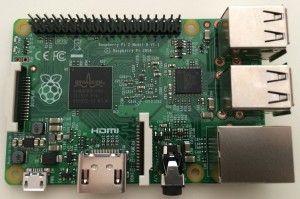
    I got recently a companion for my Raspberry Pi.

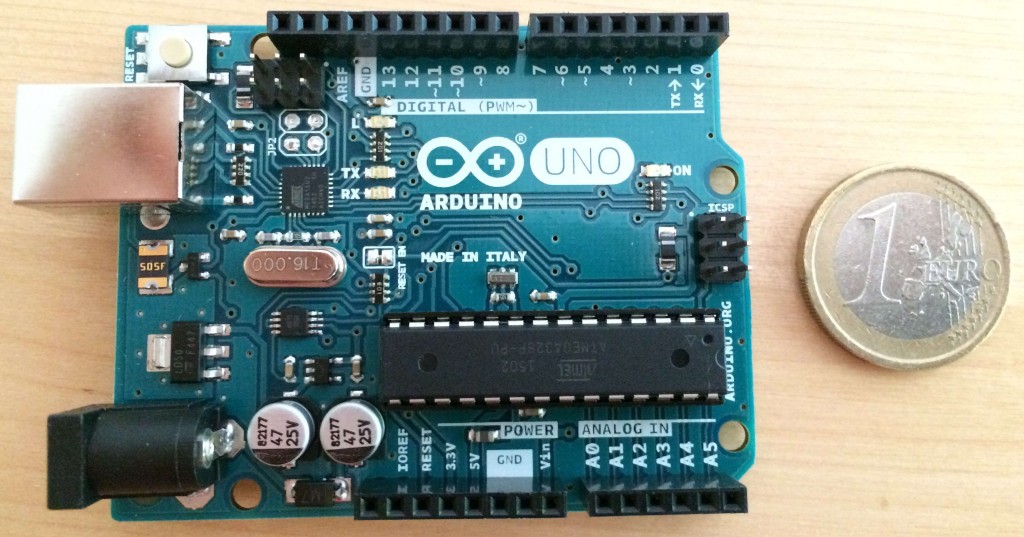
    A photo of a Arduino Uno R3
    An Arduino Uno R3 – The 1 € coin is given for size comparison.

    My goal is to use it to prototype something I want to make: a small network of temperature and humidity sensors running for months on batteries.

    Why? First because I can (I need to learn a lot first regarding electronic or microcontrollers, but I’m sure I can). Second because we have add a few problems with humidity in our basement and I want to be able to have a better idea when this is happening to find a proper solution. My idea would be to correlate the measurements to others done externally and which would include more environmental data (e.g. pressure and amount of rain) and if possible with some events (e.g. gutters are overflowing water).

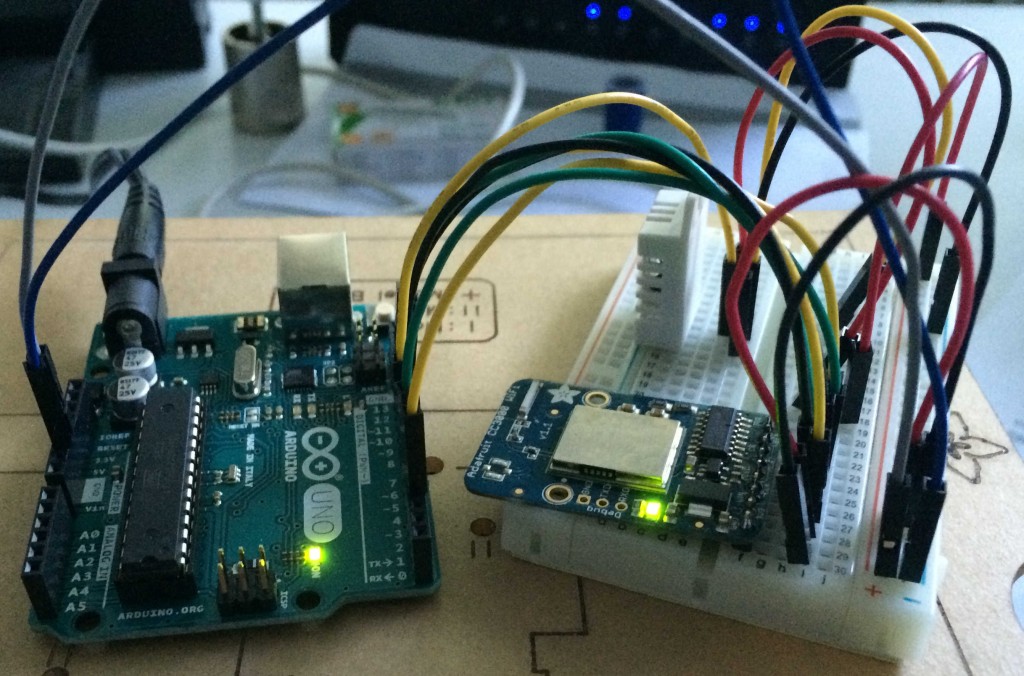
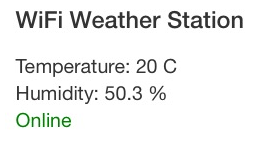
    I already started the prototyping based on a tutorial from Adafruit – a Wifi Weather Station. The results works well as one could expect. So I validated my first part: yes I can do some basic electronic and microcontroller programming, the Raspberry Pi is doing the web server side.

    My Prototype Environmental Sensor (WiFi based) v0.1
    My Prototype Environmental Sensor (WiFi based) v0.1
    A Simple Monitoring Web App (from Adafruit tutorial)
    A Simple Monitoring Web App (from Adafruit tutorial)

    The next step is reprogramming the microcontroller to push data periodically using plain UDP and either a Graphite, Statsd or Fluentd syntax. This would be pushed to a multicast address which my Raspberry Pi would listen to, it would run the Graphite/Statsd/Fluentd stack (I’m going to start with Graphite alone and see how good it is). I want to keep historical data of at least one month, perhaps even a bit more and to be able to visualise the data in real time.

    Once this is done, then I want to get rid of the WiFi module and use a transceiver in the 433 or 868 MHz band (I’m in Europe). The Raspberry Pi will be the gateway between this radio-protocol and the more standard computer network stack. So I would need to adapt whatever I had chosen for stack on my Raspberry Pi to be able to cope with the new type of input. Either I contribute to a project if it is well architectured, or I build a bridge interface.

    Final step of the prototyping will be to go low power. I’ve already approximately calculated how long I could run on 2 AA rechargeable batteries with the latest Arduino prototype and my “guestimates” is that it won’t last more than a week (probably less). So far from ideal. The solution is to build your own “Arduino”, meaning taking the microcontroller only (plus a few required components for it to run) and the needed components for the sensor. It seems that the power draw from the battery in this case would be sub mA. So I should be able to run many months on a 2 AA batteries :-)

  • Using TPM as a source of randomness entropy

    Lencois_Maranhenses_7-x256A headless server by definition has no input devices such as a keyboard or a mouse which provides a great deal of external randomness to the system. Thus, on such a server, even if using rotational hard disks, it can be difficult to avoid the depletion of the Linux kernel’s random entropy pool. A simplified view of this situation is if the entropy pool is deemed too low, one of the “dices” which generates random numbers is getting biased.  This is can be even more exacerbate on server hosted in virtual machines, but this article won’t help you in this case.

    Update 2015-08-24: the article was updated to provide some more information on TPM and commands adapted to the new systemd-based Ubuntu 15.04 and newer. When marked, use either the classic commands from Ubuntu 14.04 LTS and older or the newer ones.

    The level of the kernel entropy pool can be checked with the following command:

    $ echo $(cat /proc/sys/kernel/random/entropy_avail)/$(cat /proc/sys/kernel/random/poolsize)
    620/4096

    (Note depending of the workload of your server the above result could be considered adequate or not)

    What means a depleted entropy pool? It means that any call to /dev/random would be blocking until enough entropy is available. A blocking call is not usually wished, it means the application could be considered frozen until the call is freed. On the other side, calls to /dev/urandom would not be blocking in such situation, but there is a higher risk that the randomness quality of the output decreases. Such a higher risk could mean giving a higher chance for an attacker to predict your next dice roll. This could be exploitable or not and it is hard to tell, at least for me. Therefore, I tend to try avoiding having a depleted entropy pool especially for certain workload.

    There are several mechanism to provide randomness sources to the entropy pool. The haveged daemon uses some CPU clock timers variation to achieve that, but it is highly dependant of the CPU being used. Other approaches are using sound cards, etc. And finally there are hardware random number generators (RNG). In my previous article, I talked briefly about the hardware RNG from the Raspberry Pi. In this article, I will present another hardware RNG which is available in many computers and servers: Trusted Platform Module (TPM).


    I found the name somewhat marketing, and I’m not even sure we should trust it that much. But we will activate it only to provide a new source of entropy and nothing more. I would advise to use other source of entropy as well. Anyway, if interested the following paragraphs are describing how to achieve this, and if you decide to implement them, be reminded that I give no warranty that it will work for you nor that it won’t break things. I can only guarantee you that it worked on my machine running Ubuntu 14.04.2 LTS.

    Let’s install the necessary tools and deactivate the main services (the tools launch a daemon which we don’t want to use as we will use rngd to get and verify the randomness of the TPM RNG before feeding the entropy pool).

    Ubuntu 14.04 LTS

    $ sudo apt install tpm-tools
    $ sudo update-rc.d trousers disable
    $ sudo service trousers stop

    Ubuntu 15.04 and newer

    $ sudo apt install tpm-tools
    $ sudo systemctl stop trousers.service
    $ sudo systemctl disable trousers.service

    Then, you will need to go into the BIOS/EFI settings of your computer/server and activate TPM, and possibly clear the ownership of the TPM if it happened to be owned by someone else. Of course, don’t do that if it is not your computer.

    I found out that my particular BIOS option only allow clearing from the BIOS settings. Trying to do so from the OS results in the following:

    $ sudo tpm_clear --force
    Tspi_TPM_ClearOwner failed: 0x0000002d - layer=tpm, code=002d (45), Bad physical presence value

    I also found out that my particular BIOS when clearing the ownership, deletes also the Endorsement Key (EK). When I was trying to take ownership of the TPM device (see further) I was getting the following error:

    $ sudo tpm_takeownership
    Tspi_TPM_TakeOwnership failed: 0x00000023 - layer=tpm, code=0023 (35), No EK

    So I had to do an extra step, to generate a new EK:

    $ sudo tpm_createek

    After having creating a new EK, I was able to successfully take ownership of the TPM device.

    $ sudo tpm_takeownership
    Enter owner password:
    Confirm password:
    Enter SRK password:
    Confirm password:
    tpm_takeownership succeeded

    Once all this is done, we are ready to load the TPM RNG kernel module and launch the user space tool that will use this source to feed the Linux kernel entropy pool. The user space tool are the rng-tools suite (with the rngd daemon).

    Load the kernel module (to load it permanently add tpm_rng as a new line to /etc/modules):

    $ sudo modprobe tpm_rng

    And then install the user space tool.

    $ sudo apt install rng-tools

    The default configuration should be good enough. But you can check it by editing the file /etc/default/rng-tools. The default settings for rngd are to not fill more than half of the pool. I don’t advise to set it to higher, unless you really trust blindly those TPM chips. If you have installed the tool, it should already be running but if you modified the default settings then a restart is necessary.

    Ubuntu 14.04 LTS

    $ sudo service rng-tools restart

    Ubuntu 15.04 and newer

    $ sudo systemctl restart rng-tools.services

    Now you can check again the available entropy with the command that I gave at the beginning of this post.

  • Installing Linux on Raspberry Pi – The Easy Way

    As I announced, I got a Raspberry Pi 2 Model B and although I did not get much time to play yet with it, it was just an excuse to get back to programming and a little computer science fun.

    Anyway, I’ve installed Raspbian on it and did a few configurations which I think are worthy to share with others. I’m not going to describe a step-by-step to install a Linux distribution on your Pi, I recommend trying NOOBS and check the good documentation from the Raspberry Pi Foundation. With this setup you can choose during the installation process which Linux distribution to install.

    That’s what I did as a warm-up and a quick way to get an up-and-running Pi.

    Note that the Raspberry Pi 2 has a new CPU (ARMv7) which is not yet fully exploited by most distribution targeted at the Raspberry Pi ecosystem (with the exception of the Linux kernel). There is one exception: Snappy Ubuntu Core but it is yet alpha. However it should be possible to install most standard Linux distribution that are supporting ARMv7 instructions set, however this is an interesting exercise which I did not perform (yet).

    Anyway, using the NOOBS installation or any of the images provided for SD Card has several implication in terms of security. Here is what I recommend to do after the first boot.

    Changing password and locking root

    If you use the Raspbian installation, then you have one user account `pi’. If you haven’t changed the password for this user during installation, then better do it now. Once connected as `pi’ do:

    $ passwd

    And enter and then confirm the password you want to use.

    With Raspbian, the `pi’ user has administrator’s rights. You can call sudo to perform system changes. If you are comfortable with that, then simply lock the root account:

    $ sudo passwd -dl root

    Or if you simply want to give a password of your own and use root:

    $ sudo passwd root

    Getting some Entropy

    I am preparing a more detail article on this topic, so for now I am only going to give some background and the commands to increase the sources of entropy. Entropy is important, you need sufficient entropy (which your Linux kernel can gather for you) to be able to generate good pseudo-random numbers. Those numbers are used by many cryptographic services, such as generating SSH keys or SSL/TLS certificates.

    The problem with embedded devices such as the Raspberry Pi (especially if you run it headless like I do) is that there aren’t many sources of entropy available to the kernel, especially at boot time.

    The Raspberry Pi has an integrated hardware random number generator (HW RNG) which Linux can use to feed its entropy pool. The implication of using such HW RNG is debatable and I will discuss it in the coming article. But here is how to activate it.

    First of all, load the kernel module (aka driver) for the HW RNG (the Raspberry Pi 2 can use the same kernel module as the Raspberry Pi 1 models). The Linux way of doing it is via modprobe:

    $ sudo modprobe bcm2708-rng

    If it worked a new device should be now available /dev/hwrng and the following should be visible in the system messages:

    $ dmesg | tail -1
    [ 133.787336] bcm2708_rng_init=bbafe000

    To make the change permanent, on any Linux system you simply load the module in the /etc/modules file by adding a new line with bcm2708_rng (see next command). Or you can use the Raspberry Pi firmware Device Tree (DT) overlays (see below).

    $ sudo bash -c 'echo bcm2708_rng >> /etc/modules'

    Now install the rng-tools (the service should be automatically activated and started, default configuration is fine, but you can tweak/amend it in /etc/default/rng-tools)

    $ sudo apt-get install rng-tools

    After awhile you can check the level of entropy in your pool and some stats on the rng-tools service:

    $ echo $(cat /proc/sys/kernel/random/entropy_avail)/$(cat /proc/sys/kernel/random/poolsize)                                 
    1925/4096
    $ sudo pkill -USR1 rngd; tail -15 /var/log/syslog
    rngd[7231]: stats: bits received from HRNG source: 100064
    rngd[7231]: stats: bits sent to kernel pool: 40512
    rngd[7231]: stats: entropy added to kernel pool: 40512
    rngd[7231]: stats: FIPS 140-2 successes: 5
    rngd[7231]: stats: FIPS 140-2 failures: 0
    rngd[7231]: stats: FIPS 140-2(2001-10-10) Monobit: 0
    rngd[7231]: stats: FIPS 140-2(2001-10-10) Poker: 0
    rngd[7231]: stats: FIPS 140-2(2001-10-10) Runs: 0
    rngd[7231]: stats: FIPS 140-2(2001-10-10) Long run: 0
    rngd[7231]: stats: FIPS 140-2(2001-10-10) Continuous run: 0
    rngd[7231]: stats: HRNG source speed: (min=824.382; avg=1022.108; max=1126.435)Kibits/s
    rngd[7231]: stats: FIPS tests speed: (min=6.459; avg=8.161; max=9.872)Mibits/s
    rngd[7231]: stats: Lowest ready-buffers level: 2
    rngd[7231]: stats: Entropy starvations: 0
    rngd[7231]: stats: Time spent starving for entropy: (min=0; avg=0.000; max=0)us

    Securing SSH – the basic

    I run my Pi headless for the moment. So after the first boot, I went into the advanced configuration of the raspi-config and activated SSH daemon. I’m not here going to describe how to properly secure the SSHd daemon, which can be a topic for a future article. I’m only going to focus on one topic which is SSH host keys.

    SSH host keys are the means for a user connecting to a remote server to verify the authenticity of the server. That the sort of message you see the first time you connect to an SSH server:

    $ ssh pi@raspberrypi
    The authenticity of host 'raspberrypi (192.168.1.52)' can't be established.
    ECDSA key fingerprint is 42:3d:4f:b7:0b:4b:62:11:47:28:cc:86:76:0c:ac:24.
    Are you sure you want to continue connecting (yes/no)?

    If an attacker tries to spoof your SSH server, on connection you will get this message:

    $ ssh pi@raspberrypi
    @@@@@@@@@@@@@@@@@@@@@@@@@@@@@@@@@@@@@@@@@@@@@@@@@@@@@@@@@@@
    @    WARNING: REMOTE HOST IDENTIFICATION HAS CHANGED!     @
    @@@@@@@@@@@@@@@@@@@@@@@@@@@@@@@@@@@@@@@@@@@@@@@@@@@@@@@@@@@
    IT IS POSSIBLE THAT SOMEONE IS DOING SOMETHING NASTY!
    Someone could be eavesdropping on you right now (man-in-the-middle attack)!
    It is also possible that a host key has just been changed.
    The fingerprint for the ECDSA key sent by the remote host is
    42:3d:4f:b7:0b:4b:62:11:47:28:cc:86:76:0c:ac:24.
    Please contact your system administrator.
    Add correct host key in /home/pithagore/.ssh/known_hosts to get rid of this message.
    Offending ECDSA key in /home/pithagore/.ssh/known_hosts:3
      remove with: ssh-keygen -f "/home/pithagore/.ssh/known_hosts" -R raspberrypi
    ECDSA host key for raspberrypi has changed and you have requested strict checking.
    Host key verification failed.

    So this is all good, but the problem with these host keys is that you cannot really trust the one installed by default. They could be the same as the one from the image you downloaded and flashed on your SD Card, and so would be similar to all other persons installing the same image. Another problem is that they could have been generated at a point in the installation where not enough entropy was gathered by the kernel to be able to provide non-predictable random numbers. Therefore someone could use this to generate new host keys that would match the one on your Raspberry Pi.

    Now that in the earlier chapter we added good source to feed the entropy pool, we can regenerate better host keys. First get rid off the previous ones:

    $ sudo rm /etc/ssh/ssh_host_*key{,.pub}

    Then generate new ones with one of the 3 possibilities:

    • Automatic configuration using dpkg
    $ sudo dpkg-reconfigure openssh-server 
    Creating SSH2 RSA key; this may take some time ...
    Creating SSH2 ECDSA key; this may take some time ...
    Restarting OpenBSD Secure Shell server: sshd.
    • Automatic configuration using ssh-keygen
    $ sudo ssh-keygen -A
    $ sudo service ssh restart
    • Manual configuration
    $ sudo ssh-keygen -t rsa -b 4096 -N "" -f /etc/ssh/ssh_host_rsa_key
    $ sudo ssh-keygen -t ecdsa -b 521 -N "" -f /etc/ssh/ssh_host_ecdsa_key
    $ sudo service ssh restart

    Now if you want to print the fingerprint of any of your host keys to make sure of the authenticity of the server you are connecting to (should only be needed the first time your client connects to your server):

    $ ssh-keygen -l -f


  • Gnome 3 on Ubuntu LTS

    This mini how-to is to install Gnome on Ubuntu 14.04 LTS. Of course the best approach would have been to install Ubuntu Gnome in the first place. But if you didn’t (like me) and have Unity as desktop and would like Gnome (or just give it a try), check the rest of this article.

    Note and disclaimer: Gnome3 will be available alongside Unity. So you can always switch back and forth between the two without troubles. However, a word of caution, as usual with system modifications, make sure you have backups available and working before proceeding. I make no guarantee that the following will work for you. I’m only stated it worked for me.

    Installing Gnome Shell (aka Gnome3)

    Installing the “core” Gnome 3 is rather easy. You need to have the Universe repository activated and then:

    $ sudo apt update; sudo apt upgrade
    $ sudo apt install gnome-shell

    During installation of gnome-shell, you will be prompted to choose between GDM (the default Gnome Display Manager) and LightDM (an alternative Ubuntu is using by default). The main functions of these DM, from an end user perspective, is that they provide a graphical login where you can choose the user (and type a password) and choose the desktop environment to use once logged in. In addition these DM can offer things such as autologin. There is no wrong answer here. You can stick with LightDM (it is the one installed by default on UBuntu, and that’s the option I chose) or switch to GDM. In both cases, you need to choose for the session if you wish to use Gnome or Unity desktop environment.

    Now you can log out and log in again (choosing Gnome for the session).

    Installing some missing default Gnome Apps

    This is entirely optional. If you have seen Gnome3 release notes, you will be looking for a few extra applications that are not installed by default by Ubuntu and that are available in the Universe repository. Example applications: Gnome Maps, Gnome Weather, etc.

    To install them, you can either install the gnome-core package which will install a minimal Gnome applications environment to start with. Or install a complete Gnome applications environment (which includes all of gnome-core) by installing the package gnome. Or finally simply install a few goodies (a subselection of gnome) that is tailored to your needs. Here is a list of goodies that I installed (from Universe Repos):

    $ sudo apt install eog-plugins gnome-{backgrounds,boxes,clocks,color-manager} \
      gnome-{dictionary,documents,maps,packagekit,shell-extension-weather} \
      gnome-{system-tools,weather,music,photos} gnote

    And a few others from the main repos:

    $ sudo apt install gnome-user-share indicator-printers

    And with this, you can get a nice Gnome environment with a Ubuntu based OS.

    For Ubuntu 14.10 Users

    The above instructions works also for Ubuntu 14.10 users.